
You downloaded an APK file from somewhere, tapped on it to install, and right in the middle of it, a frustrating message pops up: “App Not Installed”. It is super annoying, especially when you really want to use that app or game.
Don’t worry, though. This is a very common issue, and you can usually fix it in just a couple of minutes. Let’s look at why this happens and how to get past it easily.
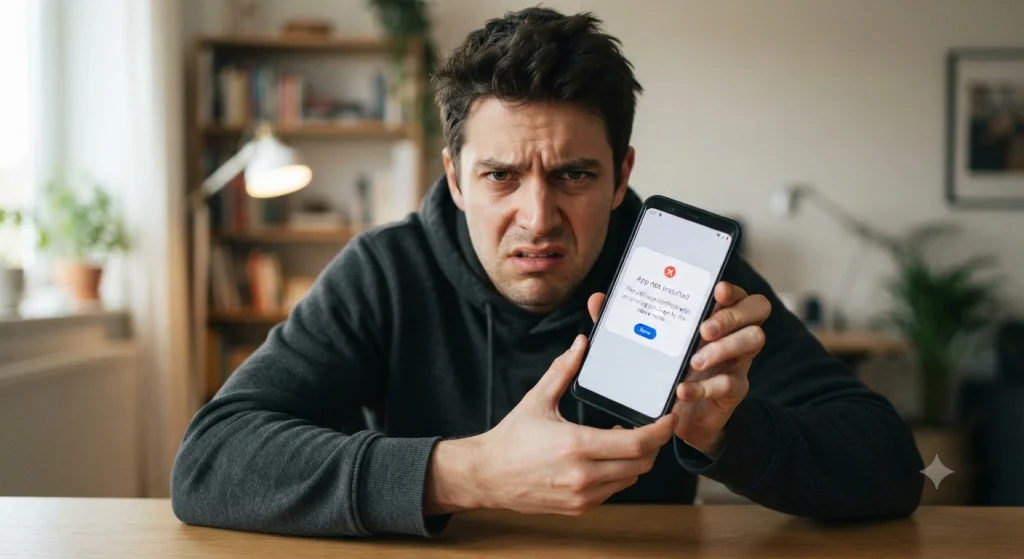
Why Do You Get This App Not Installed Error?
Before fixing it, it helps to know why your phone is acting up. The most common reasons are:
- Low Storage: Your phone is running out of space.
- Corrupted File: The download stopped halfway or got damaged.
- Old Version Conflict: You already have another version of this app installed on your phone.
- Android Version Issue: The app is too old or too new for your phone’s Android system.
- Play Protect Block: Google’s security system is blocking the app because it doesn’t recognize it.
Easy Ways to Fix (App Not Installed Error)
1. Clear Up Some Storage Space
Most of the time, phones just don’t have enough breathing room to unpack and install new apps.
- Open your phone Settings.
- Go to Storage and make sure you have at least 1 GB or 2 GB of free space.
- Delete some junk files, old videos, or unused apps, then try installing the APK again.
2. Delete the Old Version First
If you already have a different version of the exact same app on your phone (like an older update or a modded version), your phone will reject the new one.
- Search your app list for that app.
- If it is already there, uninstall it completely.
- Note: If you had a modded version and are trying to install the official one, they will clash. You have to remove the old one first.
3. Turn Off Google Play Protect (Temporarily)
Google sometimes blocks third-party apps just to be safe, giving you this exact error.
- Open the Google Play Store app.
- Tap your profile icon at the top right.
- Tap Play Protect, then click the gear icon (Settings) in the top right.
- Turn OFF “Scan apps with Play Protect”.
- Now, go back and try installing your APK. (Remember to turn Play Protect back on later for your own phone’s safety!)
4. Use a Different File Manager
Sometimes the built-in file manager on your phone fails to run the installation properly.
- Download a trusted file manager like ZArchiver or Files by Google from the Play Store.
- Open that new app, find your downloaded APK file, and tap it to install. It often works when the default one fails.
5. Download the APK Again
If the file is damaged or didn’t download completely, it will never install.
- Delete the broken APK file from your phone.
- Go back to where you got it and download a fresh copy.
- Make sure the download finishes 100% before you try opening it.
Final Thoughts
The “App Not Installed” error looks scary, but 90% of the time, it’s just a storage issue or an old conflicting app getting in the way. Follow these steps, and you should be good to go.
If you are still stuck and getting a different error message, drop a comment below and let me know what it says!